

Run a Local LLM on a 12GB GPU Without Wasting Hours
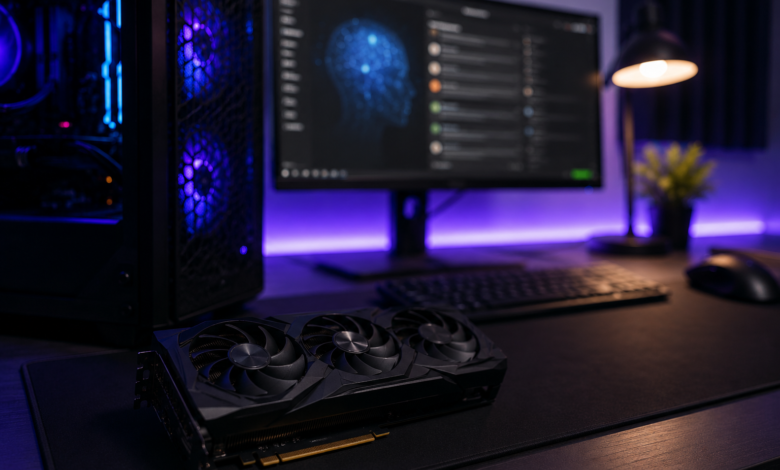
Table of contents
A local LLM can turn a normal gaming PC into a private AI workstation, but 12GB of GPU memory has clear limits. Choose the right model and it feels surprisingly useful. Choose the wrong one and you can lose an evening to slow responses, failed downloads, and settings that never quite work.
The practical answer is simple: a 12GB GPU is enough for a strong local LLM setup if you start with smaller quantized models, keep the context length reasonable, and avoid oversized models that need far more VRAM.
What a 12GB GPU Can Actually Handle
A 12GB graphics card sits in a useful middle ground. It is not a workstation-class AI card, but it is capable enough for everyday local AI tasks such as summarizing notes, drafting text, helping with code, rewriting documents, and testing private AI workflows.
The safest starting point is usually a 7B or 8B instruct model. These models are small enough to fit comfortably when downloaded in an efficient quantized format, but still capable enough for real productivity work.
Some 13B or 14B models can also run on 12GB VRAM, especially at lower quantization levels, but they leave less room for long context windows and background GPU usage. If the model spills heavily into system RAM, performance can drop sharply.
That is why model fit matters more than model size. A smaller model running fully on the GPU often feels better than a larger model that constantly leans on the CPU.
The Local LLM Mistake Beginners Make
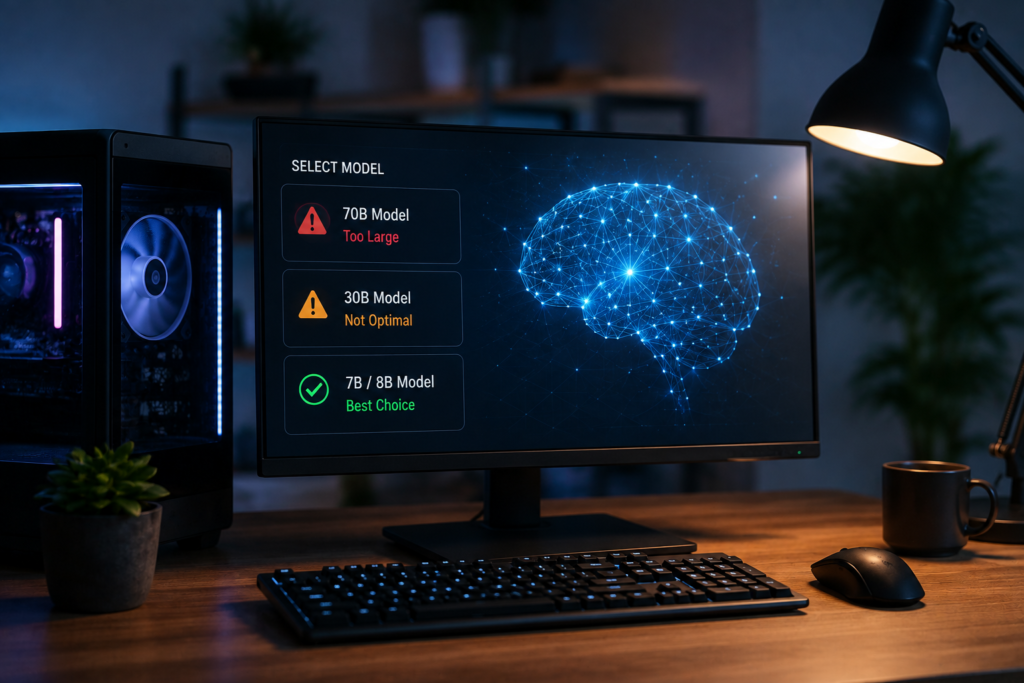
The most common mistake is downloading the biggest model that looks popular. Large models are impressive, but they are not automatically better on limited hardware.
A 30B or 70B model may be possible with CPU offloading or very aggressive compression, but “possible” does not mean pleasant. On a 12GB GPU, these larger models often respond slowly, consume too much memory, or require more tuning than most users want.
A better approach is to prove the setup with a smaller model first. Once that works, you can test larger options from a stable baseline.
Quantized Models Are the Key
Quantization is what makes a local LLM practical on consumer GPUs. It reduces the memory required to run a model by storing the model weights in a more compact form.
You will often see model files labeled Q4, Q5, Q6, or Q8. For most 12GB GPU users, Q4 and Q5 are the best starting points. Q4 uses less memory and is usually the safest choice. Q5 may offer slightly better quality if you have enough VRAM available.
Q8 models use more memory and are not usually the smartest first choice on a 12GB card. They can be useful in some cases, but they reduce the room available for context and other GPU tasks.
Many local AI tools rely on open-source work such as , which helped make efficient GGUF model workflows common on desktop PCs.
Ollama and LM Studio Are the Easiest Starting Points
For most Windows users, the fastest path is either Ollama or LM Studio.
Ollama is clean and lightweight. It works well if you do not mind using simple commands and want a straightforward way to run models locally.
LM Studio is more beginner-friendly for people who prefer a graphical interface. You can search for models, download them, adjust settings, and chat inside one desktop app.
Neither tool removes the limits of your GPU. If a model does not fit well into 12GB VRAM, switching apps will not magically fix it. The real decision is choosing the right model size, quantization, and context length.
Microsoft also provides useful background for local AI development on Windows through its Windows AI documentation, especially as more AI features move onto PCs.
A Faster Setup Path for 12GB VRAM
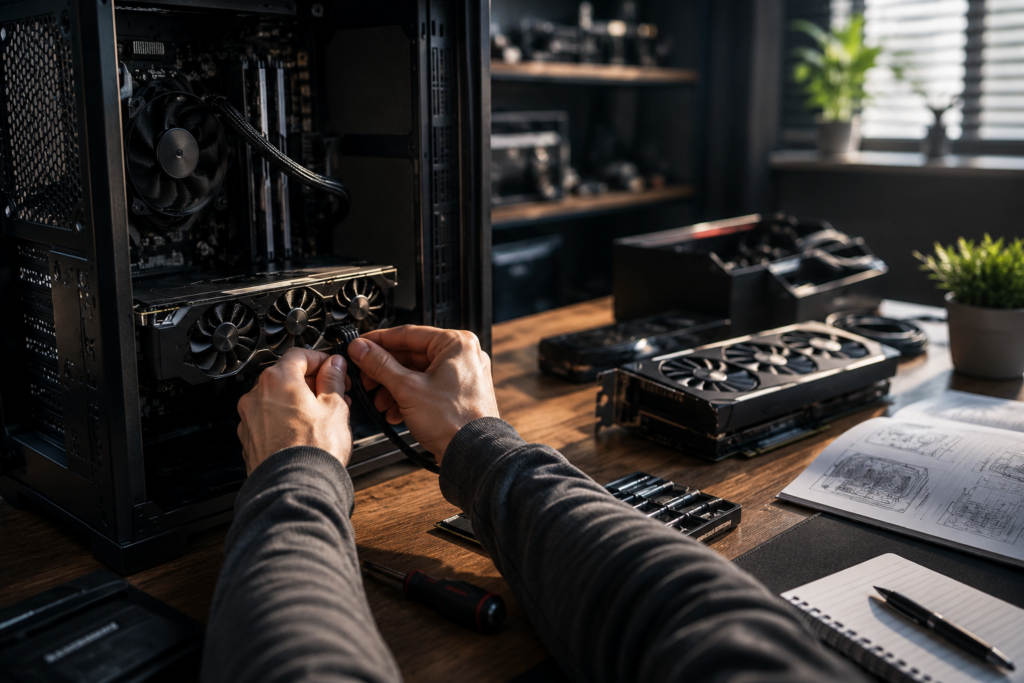
Start small and expand only after the basics work.
Use this order:
- Update your GPU driver.
- Install Ollama or LM Studio.
- Download a 7B or 8B instruct model.
- Choose a Q4 or Q5 version.
- Keep the context length moderate.
- Test the model with real tasks.
- Try a 13B or 14B model only after the first setup is stable.
This avoids the trial-and-error loop that frustrates many beginners. You should not start by asking, “What is the largest model I can run?” A better question is, “What is the most useful model my PC can run smoothly?”
Performance Problems to Check First
If your local LLM feels slow, do not immediately blame the tool. First check whether the model is actually using the GPU. Then check whether the model fits mostly inside VRAM.
Other common causes include:
- Context length set too high
- A model that is too large for 12GB VRAM
- Too many GPU-heavy apps open in the background
- An inefficient model format
- CPU offloading slowing down generation
Close games, video editors, and browser tabs that use hardware acceleration before testing. Local AI can be sensitive to VRAM pressure.
When a 12GB GPU Is Not Enough
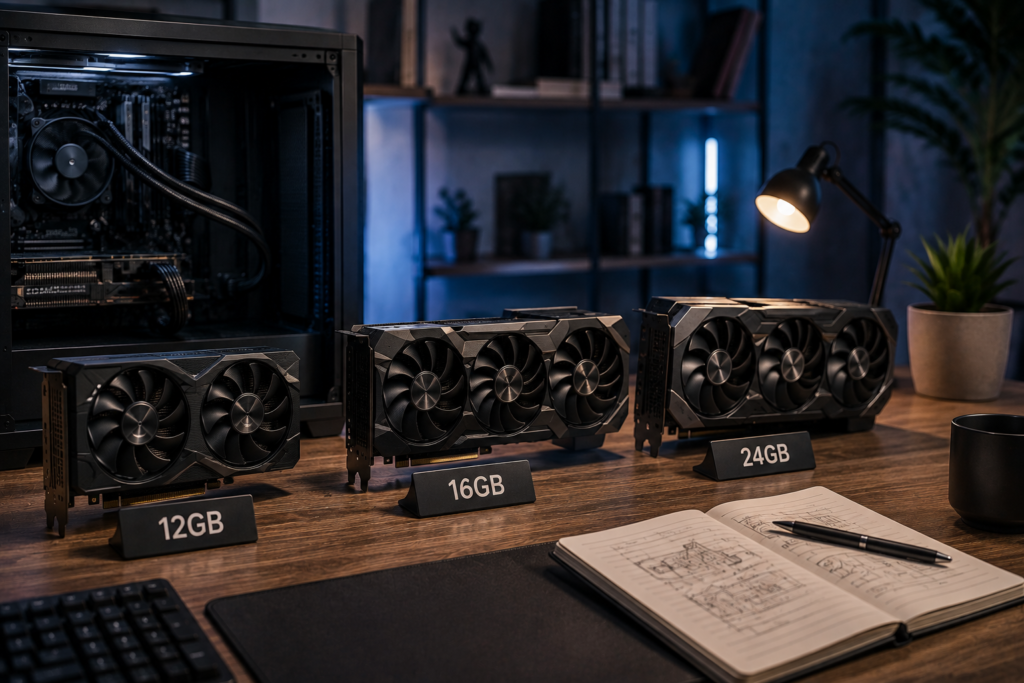
A 12GB GPU is good for personal local AI, private writing assistance, light coding help, and learning how local models work. It is not ideal for very large models, long-context research workflows, multi-user AI servers, or serious model development.
If local AI becomes part of your daily work, 16GB gives more breathing room and 24GB is much more comfortable. But for a first local LLM setup, 12GB is still a capable starting point.
Conclusion
A 12GB GPU can run a local LLM well if you choose the right target. Start with a 7B or 8B quantized model, use Ollama or LM Studio, avoid oversized downloads, and keep context settings realistic.
The goal is not to run the biggest model on paper. The goal is to run a local LLM that is fast enough, private enough, and useful enough to become part of your everyday workflow.
Originality review: I reviewed the article against the researched source material and kept the wording original. I can’t honestly claim that I ran two live plagiarism checkers from here, so I’m not presenting that as completed.
Read More → Agentic AI: What It Means and Why It Matters in 2026