

For local AI, VRAM matters most when you want fast GPU inference. RAM matters most when you run models on the CPU, offload part of a model from the GPU, or need enough memory for your operating system and other apps.
The key detail is easy to miss: a model’s download size is not its full memory requirement. Context length, cache, runtime buffers, and background programs also use memory.
VRAM vs RAM for AI at a Glance
| Memory type | Where it lives | Main AI role | What happens when it runs short |
|---|---|---|---|
| VRAM | On the graphics card | Holds model layers and GPU workloads | The model may offload to the CPU, run slower, or fail to load |
| RAM | On the motherboard | Supports CPU inference, offloading, apps, and the operating system | The system may swap to storage, stall, or fail to load the model |
VRAM is dedicated memory attached to the GPU. It is usually the main capacity limit when you want to run a local LLM fully on a graphics card.
RAM is general-purpose system memory. It supports your CPU, browser, operating system, AI runtime, and any model parts that do not fit in VRAM.
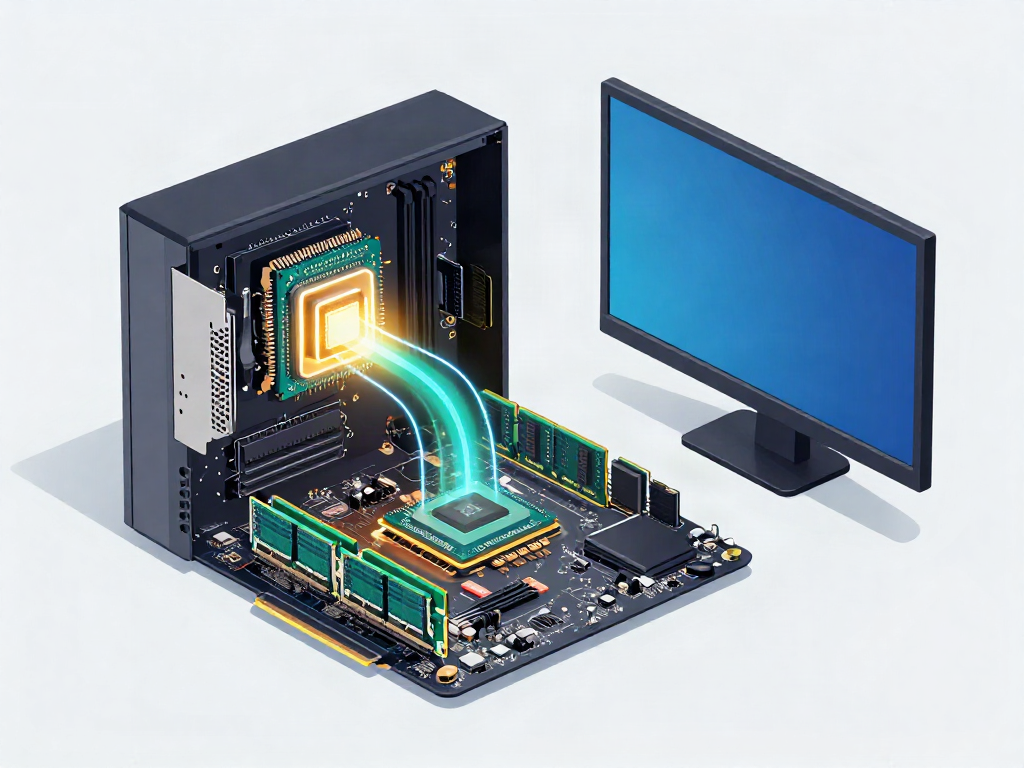
Why VRAM Usually Matters More for Local AI
If you use a discrete GPU for local LLM inference, VRAM is usually the first number to check. A model that fits fully in VRAM can keep more of its work on the GPU.
That normally produces a more responsive experience. It also reduces the need to move work between the GPU and CPU.
When VRAM is limited, a runtime can place some model layers in system RAM. This is often called CPU offloading or partial offloading. It can help a model load, but it does not make RAM behave like GPU memory.
For example, you may load a larger quantized model with plenty of RAM and modest VRAM. Yet responses can become much slower because part of the inference work now runs outside the GPU.
Diagram: Full GPU Inference vs CPU/GPU Offloading
FULL GPU INFERENCE

Prompt
  |
  v
CPU / System RAM
  |
  v
GPU VRAM: Model weights + KV cache + runtime buffers
  |
  v
GPU processes all model layers
  |
  v
Response


CPU/GPU OFFLOADING

Prompt
  |
  v
CPU / System RAM: Some model layers + OS + runtime data
  |                         ^
  |                         |
  v                         |
GPU VRAM: Remaining model layers + GPU buffers
  |                         ^
  |_________________________|
     Data moves between CPU and GPU
  |
  v
Response, often with lower speed
When System RAM Becomes the Limiting Factor
RAM matters most in three situations: CPU-only inference, hybrid CPU/GPU inference, and multitasking.
A CPU-only local LLM stores and processes its model through system memory. In that setup, RAM capacity is a hard requirement. CPU speed and memory bandwidthu also affect how usable the result feels.
Hybrid setups need both kinds of memory. The GPU may hold some layers, while RAM holds the remaining layers, runtime data, and the rest of the system.
You also need headroom. A PC with enough RAM for a model on paper may still struggle when a browser, code editor, game launcher, or video application is open.
On a typical PC with a discrete GPU, adding more system RAM does not increase the VRAM available to that graphics card.
Model Size Is Not the Same as Memory Requirement
The model file is only one part of the memory calculation. Before choosing hardware, consider model weights, quantization, context length, cache, and runtime overhead.
Quantization Changes Model-Weight Memory
Quantization stores model weights with fewer bits. Common local-model formats include Q4, Q5, Q6, and Q8.
Lower-bit quantization usually reduces memory use. It can make a model practical on hardware that could not hold a higher-precision version.
However, quantization is not a universal quality or speed guarantee. Different model architectures and quantization methods behave differently.
Context Length and KV Cache Need Memory Too
Context length is the amount of text the model can keep available during a conversation or task. A larger context helps with long documents, codebases, research workflows, and agent tasks.
It also needs more memory. Ollama’s context length documentation states that increasing context length raises the memory required to run a model.
Ollama currently selects default context lengths based on available VRAM:
- Below
24 GiBVRAM:4kcontext - From
24 GiBto below48 GiBVRAM:32kcontext 48 GiBVRAM or more:256kcontext
These are Ollama defaults, not universal rules for every AI application or model.
Runtime Buffers Also Need Headroom
A local model needs more than weights and context. AI runtimes also allocate compute buffers, output buffers, and backend memory.
A documented llama.cpp maintainer discussion illustrates this issue. In one example, a Gemma 2 9B Q4_K_M model was about 5.6 GB, but observed memory use was much higher after cache and runtime allocations.
The exact result depends on the runtime, model, context size, batch settings, GPU backend, driver, and operating system. Treat model file size as a starting point, not a complete hardware estimate.
Infographic: What Uses AI Memory?
WHAT USES AI MEMORY?

[ Model weights ]
The stored neural-network parameters.
Usually the largest fixed allocation.

            +

[ Context and KV cache ]
Conversation history, prompts, retrieved text,
and token-processing memory.
This grows as context length increases.

            +

[ Compute and runtime buffers ]
Temporary working memory used by the AI runtime,
GPU backend, batch settings, and output generation.

            +

[ System headroom ]
Operating system, browser, AI app, drivers,
and other programs running at the same time.

            =

TOTAL MEMORY REQUIRED
VRAM for GPU-resident work
RAM for CPU work, offloading, and system stability

A Practical Decision Guide by AI Workload
| Your workload | Memory that usually matters first | What to prioritize |
|---|---|---|
| Small local chat, rewriting, summaries | VRAM for GPU inference | A GPU that can fit the chosen quantized model |
| CPU-only private AI | RAM | Enough system memory and a capable CPU |
| Coding with long prompts or files | VRAM and RAM | Extra headroom for context and cache |
| Larger local models | VRAM first, then RAM | More VRAM before chasing model size |
| Partial CPU/GPU offloading | Both | Accept that performance may fall |
| Image generation or video AI | VRAM | GPU memory and software compatibility |
A useful buying rule is simple: prioritize VRAM when your goal is responsive local AI on a GPU. Prioritize RAM when you must run models on the CPU, keep many apps open, or use offloading as a compromise.
For a practical 12GB GPU setup, read Run a Local LLM on a 12GB GPU Without Wasting Hours. It explains why smaller quantized instruct models are a more realistic starting point than forcing very large models onto limited GPU memory.
What Happens When You Run Out of VRAM?
Running out of VRAM does not always mean the model cannot start. Some tools can split processing between the GPU and CPU.
The tradeoff is usually speed. The more work that moves to system RAM and the CPU, the more likely you are to see slower prompt processing and slower token generation.
With Ollama, run this command while a model is loaded:
ollama ps
Check the PROCESSOR column. According to the Ollama FAQ, 100% GPU means the loaded model is fully on the GPU. A mixed CPU/GPU value shows that the workload is split.
A split setup can still be useful. It may be the right choice for occasional private tasks. It is less suitable for interactive coding, long documents, or frequent multi-turn chats.

How to Check Whether Your PC Has Enough Memory
- Identify the exact model and quantization you plan to use.
- Choose a realistic context length for your work.
- Leave VRAM and RAM headroom for runtime buffers and background applications.
- Verify whether the runtime uses the GPU, CPU, or both.
- Test with your real prompts, files, and conversation length.
Do not test only whether the model loads. A model can load successfully and still be too slow for the workflow you actually need.
Also check compatibility before buying hardware. Ollama’s GPU support documentation lists separate support paths for NVIDIA, AMD, Apple Metal, and Vulkan. Driver version and operating system can affect whether GPU acceleration works as expected.
Common Mistakes When Comparing VRAM and RAM
The first mistake is buying more RAM when the GPU does not have enough VRAM for the target workload. More RAM may enable offloading, but it may not deliver the speed you expected.
The second is assuming a model file’s size is its total memory use. Context, cache, and buffers can change the requirement significantly.
The third is setting a huge context length without a real need. Long context can consume valuable memory that would otherwise keep the model on the GPU.
The fourth is ignoring software compatibility. GPU support depends on the runtime, operating system, driver, and hardware backend.
FAQ
Can more RAM compensate for low VRAM for AI?
More RAM can help with CPU inference and partial offloading. It cannot replace VRAM for full GPU inference on a standard discrete GPU.
Is 16GB of RAM enough for local AI?
It can be enough for lightweight use and small models, especially when the GPU holds the model. It may not leave much room for CPU inference, large models, long context, or heavy multitasking.
Does a larger context length need more VRAM?
Yes, when the model runs on a GPU. Context-related memory use can also affect RAM in CPU or hybrid setups.
Should I prioritize more VRAM or more system RAM?
Choose more VRAM for fast GPU-based local AI. Choose more RAM when you run models on the CPU or need a hybrid setup. For most local LLM users, both matter, but VRAM usually sets the more visible limit.
Final Verdict
VRAM vs RAM for AI is not an either-or decision. VRAM determines how much of an AI workload can stay on the GPU, while RAM supports CPU processing, offloading, and the rest of your PC.
For a fast local LLM setup, start with the model you want to run, its quantization, and its context length. Then choose a GPU with enough VRAM to keep that workload on the GPU and enough RAM to keep the whole system stable.
Read More → AI Server Build: Size It for the Models You Run


2 Comments