

A passkey and 2FA solve two different problems. A passkey replaces your password. Two-factor authentication (2FA) adds a second check on top of a password you still have. So the honest answer to “passkey vs 2FA” is that you are usually not choosing between them — you are deciding what your account falls back to when the passkey isn’t available.
That fallback is where most people get it wrong, and it is where the real risk lives.
The short answer
Use a passkey wherever a service offers one. Keep a second factor configured on the account anyway, because your password almost certainly still exists behind the scenes, and your recovery options are what an attacker will target instead.
The UK’s National Cyber Security Centre puts the first half plainly: it recommends users opt for passkeys over passwords wherever they are available, describing them as “a more secure alternative to passwords and traditional 2SV or MFA.” But it also notes that where passkeys aren’t offered, strong passwords plus two-step verification remain a resilient defence.
What a passkey actually is
A passkey is a login credential stored on your device — phone, laptop, or a hardware security key — that you unlock the same way you unlock the device itself: fingerprint, face scan, or PIN.
Behind the scenes, your device creates two linked keys. The private key never leaves your device or your encrypted credential manager. The public key goes to the website. When you sign in, the site sends a challenge, your device signs it, and the site verifies the signature. As Apple describes it, “no shared secret is transmitted, and the server does not need to protect the public key.”
That last point matters more than it sounds. A website that gets breached cannot leak your passkey, because it never had the secret half.
Two practical variants exist. Synced passkeys live in a credential manager (iCloud Keychain, Google Password Manager, or a third-party app) and follow you across devices. Device-bound passkeys stay on one device only. Microsoft’s guidance is blunt about the trade-off: with a device-bound passkey, “if you lose the device, you lose the passkey unless you have another recovery method.”
What 2FA actually is
2FA means your password is not enough on its own. After entering it, you prove something else — a code from an authenticator app, a push notification, an SMS message, or a hardware key.
Not all second factors are equal. SMS sits at the bottom, and platform vendors are actively retreating from it. Microsoft has announced it will phase out SMS for personal accounts, stating that “SMS-based authentication is now a leading source of fraud” and is vulnerable to phishing and SIM-swap attacks.
Authenticator apps are meaningfully stronger than SMS. But they share one weakness with SMS: a convincing fake login page can ask you for the code, and you can type it in. The code doesn’t know which site it’s going to.
The real difference, side by side
| Passkey | 2FA (password + second step) | |
|---|---|---|
| Replaces | The password | Nothing — adds to it |
| What you do | Unlock your device | Type password, then a code or approval |
| Phishable? | No — bound to one domain | Depends: SMS and app codes can be phished |
| If the site is breached | No secret to steal | Password hash exposed |
| Main failure mode | Losing device access | Losing phone / SIM swap / code interception |
| Best for | Everyday sign-in on your own devices | Any account without passkey support |
Why passkeys resist phishing
This is the one genuine security leap, and it has nothing to do with biometrics.
A passkey is cryptographically bound to the exact domain it was created for. Microsoft’s explanation is the clearest: “a passkey created for netflix.com can only be used with netflix.com. While you may be tricked into landing on a similar looking website, your device won’t present your passkey to the malicious website.”
Read more: AI Phone Scams Sound Real Now: 9 Safety Tips That Actually Help
You cannot be socially engineered into handing over a passkey the way you can be talked into reading out a six-digit code. The browser simply won’t offer it on the wrong domain.
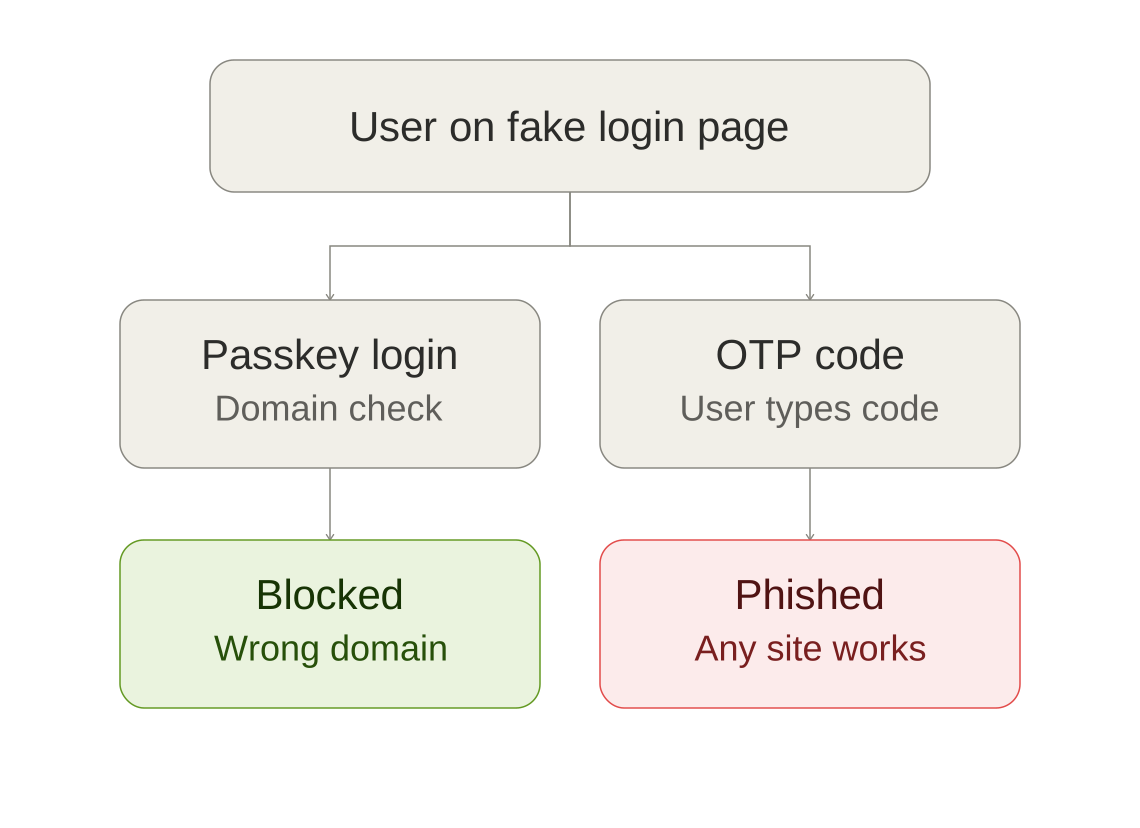
The US Cybersecurity and Infrastructure Security Agency reached the same conclusion, stating that “the only widely available phishing-resistant authentication is FIDO/WebAuthn authentication.” (Note: CISA has since marked that page as archived content, so treat it as established guidance rather than the newest policy.)
Worth being precise about what this does not cover. Phishing resistance protects the sign-in moment. It does not protect you from malware on an already-unlocked device, from someone who knows your phone’s PIN, or from a support-desk social engineering attack against your account recovery.
Is a passkey “two-factor” on its own?
Here the industry genuinely disagrees, which is why you’ll find contradictory answers online.
Microsoft says yes. Its documentation states passkeys “are considered a form of multi-factor authentication,” reasoning that you need the device holding the passkey (something you have) and you must unlock it with a biometric or PIN (something you are, or know).
The FIDO Alliance frames it differently. It calls a passkey “a primary factor that — standing alone — is more secure than the combination of either ‘password + OTP’ or ‘password + phone approval’.” In other words: not two factors stacked, but one credential that outperforms the stack.
Some password-manager vendors go further and describe passkeys as single-factor.
For a normal user, the terminology fight doesn’t change what you should do. The useful takeaway is this: a passkey sign-in is a single step that already involves both possession and verification, and it is harder to phish than a password plus a code. Whether you label that “MFA” is a matter of definition, not security.
Should you turn 2FA off after adding a passkey?
No. And on most platforms you couldn’t cleanly do it anyway.
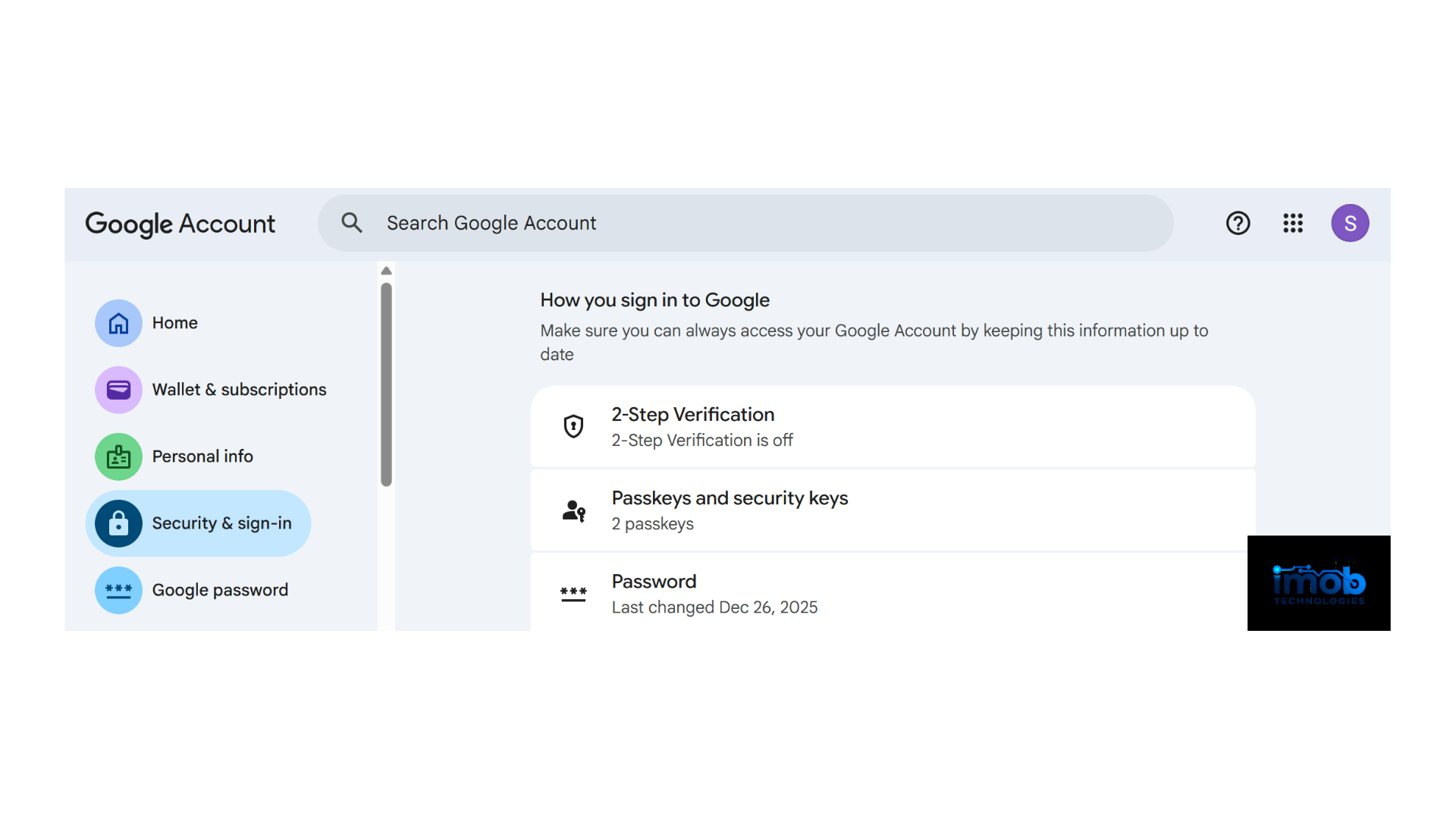
The critical detail — which very few guides state clearly — is that adding a passkey usually does not remove anything. Google’s documentation is explicit on both halves of this:
“If you add a passkey to your Google Account, it doesn’t change or remove any authentication or recovery factors currently on your account.”
“If your account has 2-Step Verification or is enrolled in the Advanced Protection Program, your passkey bypasses the second authentication step, since this verifies that you own the device.”
Read those together and the picture is clear. Your passkey skips the second step; it doesn’t delete it. Your password and your old recovery methods are still sitting there, still valid, still targetable. Deleting your 2FA setup would remove a safety net while leaving the password intact — the worst combination.
On a Google account
Passkeys work as a full password replacement for personal accounts, and Google turns on a “Skip password when possible” preference when you create one. A few behaviours catch people out:
- A newly created passkey may need up to 7 days before it becomes available at sign-in.
- On Android, after signing out you can sign back in with the passkey for about 6 hours; after that you need another method.
- On Google Workspace accounts, your administrator may not permit passkey-only sign-in. In that case the passkey functions as a second factor or a recovery option instead.
On an Apple account
Passkeys sync through iCloud Keychain, and Apple requires two-factor authentication on any Apple Account using it. If you try to register a passkey without 2FA enabled, Apple prompts you to set it up first. You cannot opt out of the layered model here — it’s structural.
On a Microsoft account
Microsoft is pushing hardest toward passwordless, treating passkeys plus a verified email as the replacement for SMS. Its stated system requirements include Windows 10 or newer, macOS Ventura or newer, iOS 16 or newer, and Android 9 or newer, with Edge 109, Safari 16, or Chrome 109 and up.
Account recovery: the part that actually decides your risk
If you take one thing from this comparison, take this: the strength of your account equals the strength of its weakest recovery path, not the strength of your best sign-in method.
An attacker who can’t phish your passkey will simply try “forgot password” instead. So it is worth knowing exactly what recovery looks like on your platform.
Apple’s model is well documented and deliberately unforgiving. Passkeys can be restored through iCloud Keychain escrow, but to get there you must authenticate with your Apple Account and password, respond to an SMS sent to your registered number, and then enter your device passcode. Apple allows only 10 attempts. After the tenth failure, in Apple’s words, “the escrow record is destroyed.” Apple also offers an account recovery contact as a safeguard.
Microsoft’s answer for personal accounts is a verified email plus a passkey, explicitly designed so you can recover “even if you change phone numbers or lose devices.”
Google keeps your existing recovery factors in place when you add a passkey — which is protective, but also means an outdated recovery phone number or a stale backup email stays live as an attack surface.
The practical implication: review your recovery settings after you set up passkeys, not before. That’s the step almost everyone skips.
When 2FA is still the better choice
Passkeys are not universally the right answer yet.
- The service doesn’t support them. Most of the internet still doesn’t. Use a strong unique password plus the best second factor available.
- Shared or borrowed devices. Google warns directly: “Only create passkeys on devices you personally own and use. Even if you sign out of your Google Account, once you create a passkey, anyone who can unlock your device can access your Google Account.”
- Managed work accounts. Your IT administrator may restrict which methods you can use.
- You only own one device with no sync. A device-bound passkey on a single phone, with no synced credential manager and no backup, is a lockout waiting to happen.
A practical setup that holds up
- Add a passkey to your main accounts — email first, since email recovers everything else.
- Save it to a synced credential manager rather than a single device, so losing one device isn’t fatal.
- Create a passkey on a second device as a spare, if you have one.
- Leave your existing 2FA method configured. Don’t delete it.
- If you still rely on SMS codes, move to an authenticator app or a passkey where possible.
- Audit your recovery options — phone number, backup email, recovery contact, backup codes. This is the step that matters most.
- For accounts without passkey support, keep a strong unique password and 2FA.
Read more: AI App Privacy Risks Most Users Ignore Before Signing Up
Bottom line
“Passkey vs 2FA” frames this as a competition, but it isn’t one. A passkey removes the password from the equation and makes the sign-in itself phishing-resistant. 2FA patches a password you’re still carrying. On the platforms covered here, adding a passkey doesn’t erase your other methods — it just lets you skip past them, while your recovery paths stay exactly as strong or as weak as you left them.
Set up the passkey. Then go fix your recovery settings.
FAQ
Does a passkey replace 2FA?
It replaces the password step, and on Google accounts it bypasses the second verification step. It doesn’t remove 2FA from your account, and you shouldn’t delete your existing second factor.
Are passkeys safer than an authenticator app?
For resisting phishing, yes. A passkey only works on the domain it was created for, so a fake login page can’t obtain it. An authenticator code can be typed into a fake page by a user who’s been tricked.
What happens if I lose my phone?
With a synced passkey, it’s available on your other devices signed into the same credential manager. With a device-bound passkey and no backup, you’ll need your account’s recovery process — which is why auditing recovery settings matters.
Can someone steal my passkey from a website breach?
No. The website only ever stores your public key. The private key stays on your device.
Is a passkey the same as multi-factor authentication?
Sources disagree. Microsoft classifies passkeys as multi-factor; the FIDO Alliance describes them as a primary factor stronger than password-plus-code combinations. Practically, a passkey sign-in involves both device possession and user verification in a single step.
Should I still use a password manager?
Yes. Most services don’t support passkeys yet, and your credential manager is what stores and syncs the passkeys you do have.
Read more: AI App Privacy Risks Most Users Ignore Before Signing Up

One Comment