
Text to Video AI: How to Turn Your Ideas Into Videos
Have you ever had a good idea for a video, but then wondered how you could actually turn that idea into something people can watch? With new text to video tools, transforming concepts into engaging videos has never been easier.
Maybe you already have the script. Perhaps you even have the entire idea planned out. The difficult part is everything that comes afterward: finding visuals, recording a voice, adding subtitles, choosing music, and putting everything together.
That’s where text to video AI can help.
Instead of creating every part of a video manually, you can give an AI tool written instructions and let it help turn your idea into video content.
The good news is that you don’t need to be a professional video editor to get started.
In this guide, we’ll go through the process step by step, using simple examples that anyone can understand.
What Is Text to Video AI?
Let’s make this as simple as possible.
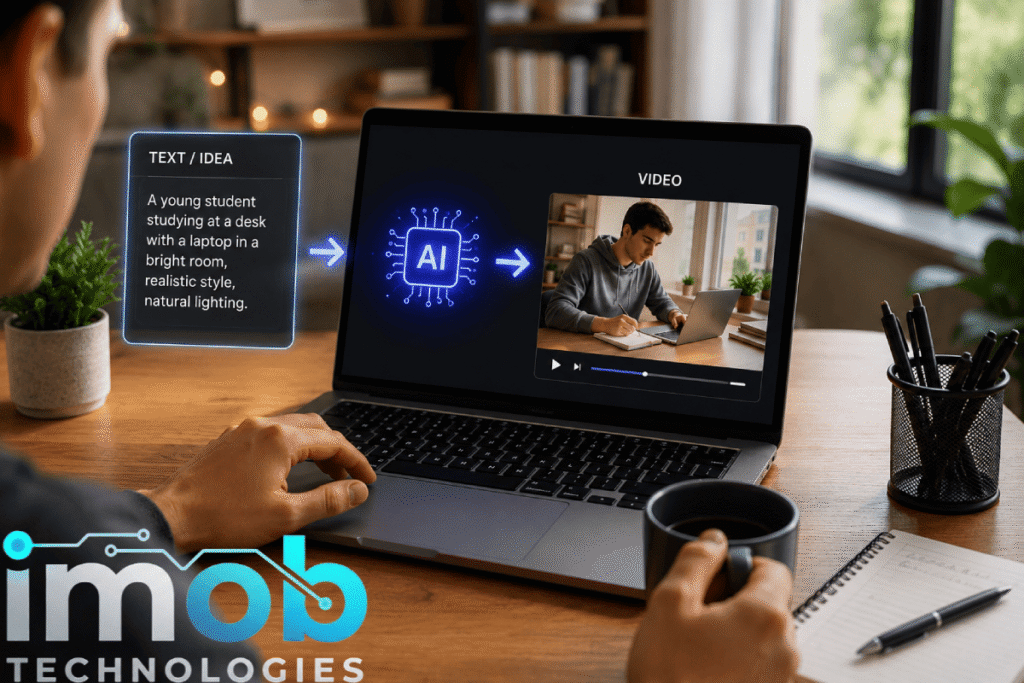
Text to video AI is technology that can turn written instructions into video content.
You give the AI some text describing what you want.
For example:
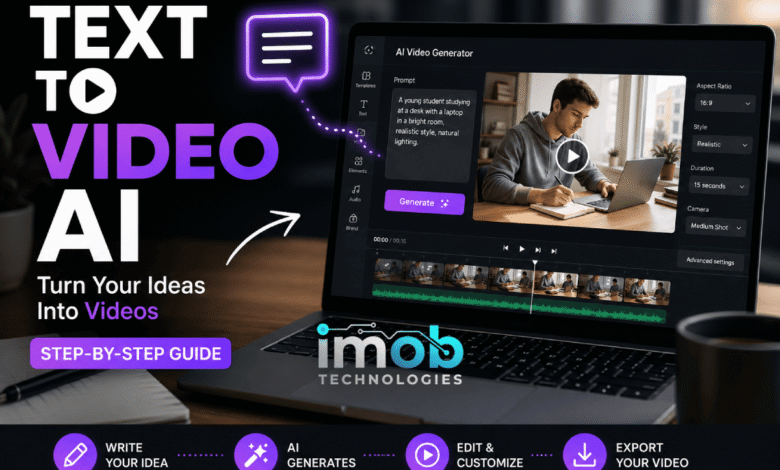
“A student studying at a desk while using an AI tool on a laptop.”
The AI then uses that instruction to create a video scene based on your description.
Depending on the tool you use, it may also help with:
- Video scenes
- AI-generated visuals
- Voiceovers
- Subtitles
- Music
- Sound effects
- Basic editing
However, not every tool offers all of these features.
Some platforms are mainly designed to generate short video clips, while others can help you create a more complete video.
So, when people say text to video AI, they are not necessarily talking about one specific application. Instead, they are talking about a category of AI tools that use written instructions as an input for creating video.
Think of It This Way
Your idea → Your text → AI → Video
That’s really the whole concept.
You don’t need to understand how the AI model works behind the scenes. You simply need to learn how to describe what you want clearly.
What Can You Create With Text to Video AI?
This is where things get interesting.
You can use AI video tools for many different types of content.
YouTube Shorts
Have a short script about an interesting topic?
You can use AI to help turn it into scenes, narration, and subtitles.
TikTok and Instagram Reels
Similarly, AI can help you create short-form videos without recording everything yourself.
Educational Videos
You can take a complicated explanation and turn it into a visual presentation that is easier to follow.
Product Videos
Businesses can use AI video tools to create simple product demonstrations or promotional content.
Explainer Videos
If you need to explain how something works, video can make the explanation much easier to understand.
Storytelling Videos
You can also use text-to-video tools to visualize stories, fictional scenes, or creative ideas.
The important thing is that AI does not replace the idea.
You still need to decide what your video should say and how you want it to feel. The AI simply helps you turn that idea into something visual.
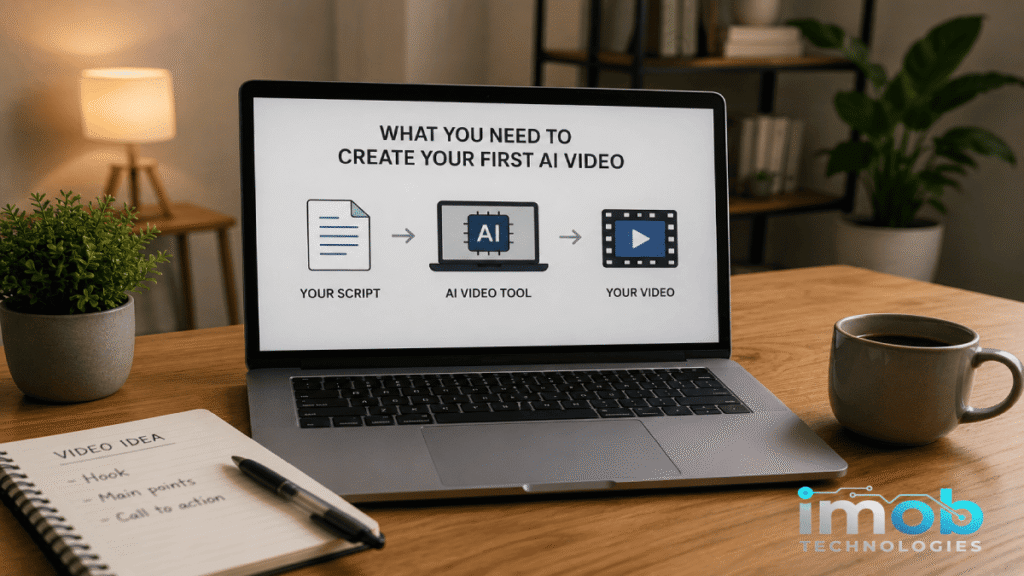
What Do You Need to Create Your First AI Video?
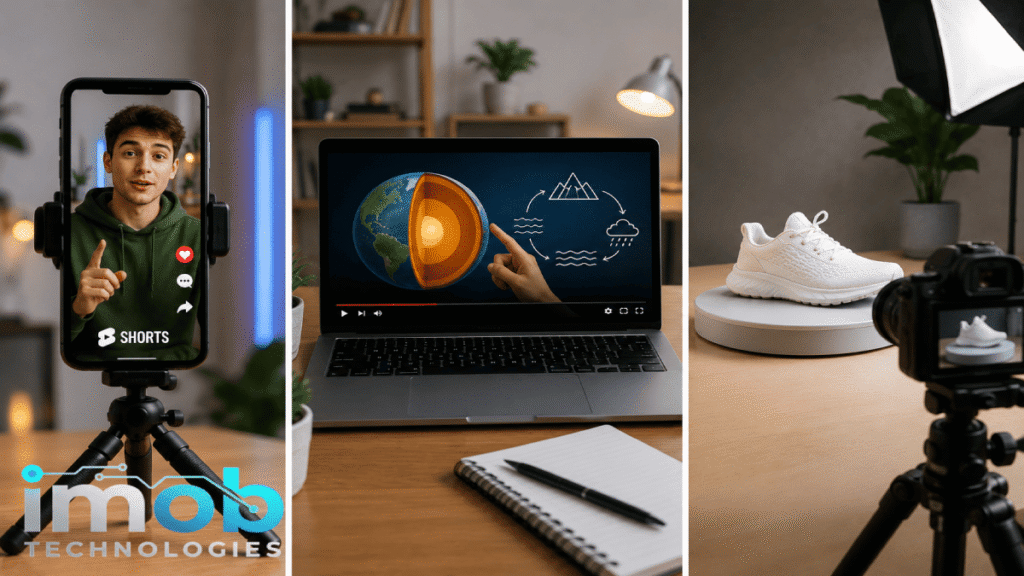
Good news: you don’t need much.
If you are a complete beginner, start with these three things.
1. A Simple Idea
This can be extremely simple.
For example:
“I want to make a 30-second video explaining three useful AI tools for students.”
That is enough to get started.
2. A Short Script
A script is simply the words your video will communicate.
It does not have to look like a movie script.
For example:
“AI can help students save time. Here are three simple ways to use it.”
That is already a script.
3. A Text to Video AI Tool
This is the software that takes your instructions and helps create the video.
There are many tools available, and they do not all work the same way.
Some create individual AI-generated clips. Others can take a longer script and build a video around it.
Before choosing one, it helps to understand what each platform is designed to do.
Best Text to Video AI Tools
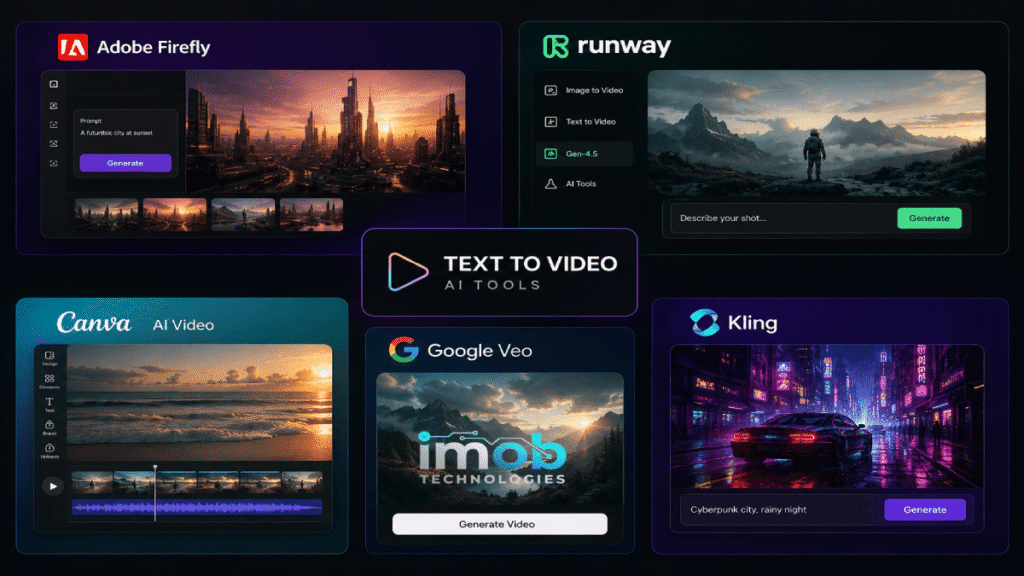
You don’t need to use the same AI video generator as everyone else. Different tools are better suited to different types of projects, so trying a few can help you find the right one.
Adobe Firefly
Adobe Firefly is an option for generating video clips from text prompts.
Runway
Runway is designed for more advanced AI-generated video creation and gives creators more control over their results.
Canva AI Video
Canva AI Video is useful if you want to generate content and continue editing it in the same editor.
Google Veo
Google Veo is Google’s AI video technology for generating video from written prompts.
Kling AI
Kling AI is another option for creating AI-generated video from text or images.
You don’t need to try all of them. Pick one that fits your needs, learn the basics, and start with a simple project.
How to Turn Text Into a Video Using AI
Now let’s actually go through the process.
If you have never edited a video before, don’t worry. We’ll keep everything as simple as possible.
Step 1: Start With One Clear Idea
Before opening an AI video generator, decide what your video is about.
Don’t try to create everything at once.
For your first video, something like this is enough:
“Create a short video explaining three ways AI can help students.”
That is much better than:
“Make an amazing viral AI video.”
Why?
Because the first idea gives the AI something specific to work with. It tells the AI both the subject and the purpose of the video.
A Useful Formula
Try combining:
Topic + audience + length + style
For example:
“Create a 30-second educational video for beginners explaining three ways AI can help students. Use a clean and modern style.”
You can make the instructions more detailed later.
Step 2: Turn Your Idea Into a Short Script
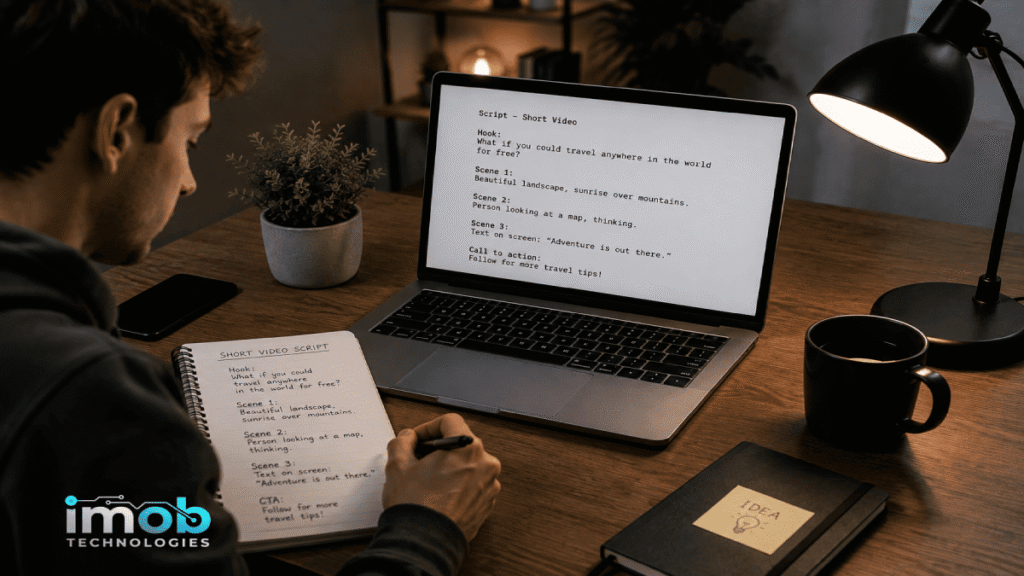
Now it’s time to turn the idea into something your video can actually communicate.
Let’s use our student example.
Simple Script
Introduction:
“AI can make studying easier when you use the right tools.”
Point1:
“It can summarize long notes and help you find the important information.”
Point2:
“It can explain difficult subjects using simpler language.”
Point3:
“It can create practice questions so you can test yourself.”
Ending:
“The important thing is to use AI as a study assistant, not as a replacement for learning.”
That is already enough for a short video.
Why Divide the Script?
Because videos are made of scenes.
Instead of asking an AI to understand one giant paragraph, think about your video like this:
Scene 1 → Introduction
Scene 2 → First point
Scene 3 → Second point
Scene 4 → Third point
Scene 5 → Conclusion
As a result, the entire process becomes easier to control.
Step 3: Choose the Right AI Video Tool
Now you need a tool that can turn your text or instructions into video content.
There isn’t one tool that is perfect for everyone.
Some focus on realistic AI-generated video clips. Others are more focused on creating complete videos from scripts.
When choosing one, don’t just look at how impressive the homepage looks.
Ask yourself:
- Is it easy to use?
- Can beginners understand it?
- Does it support the type of video I want?
- Can I edit the generated result?
- Does it add a watermark?
- What does the free plan include?
- Can I use the result commercially?
These questions are often more useful than simply asking which tool is “the best.”
Step 4: Give the AI Your Text
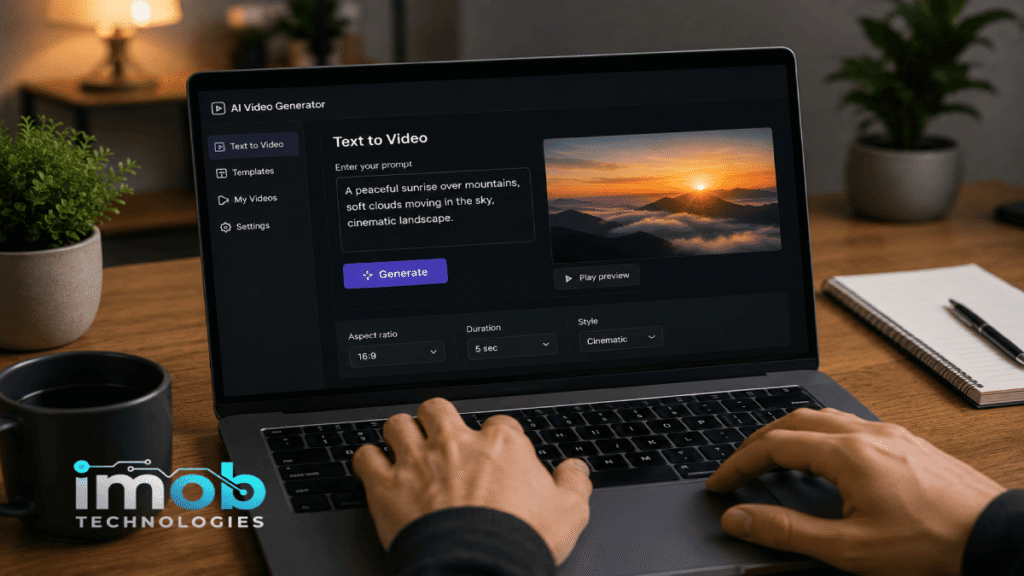
This is where your idea becomes a prompt.
A prompt is simply the instruction you give to an AI.
For example:
“A university student studying at a desk with a laptop in a bright modern room. The student is taking notes while using an AI assistant. Realistic style, natural lighting, calm atmosphere.”
That’s a prompt.
Notice that we didn’t just say:
“Student studying.”
Instead, we gave the AI more information.
We described:
- Who is there
- What they are doing
- Where they are
- What the environment looks like
- What style we want
Because of this, the AI has a clearer idea of what we want to create.
Step 5: Generate Your First Video
Once your text or prompt is ready, start the generation process.
This is the part where the AI does most of the work.
Depending on the tool, it may take a few seconds or longer to create the result.
However, your first result might not be perfect.
That’s completely normal.
You might get:
- The wrong visual
- Strange movement
- An object you didn’t ask for
- A scene that doesn’t match the script
- Unnatural-looking details
- A voice that doesn’t sound right
Don’t immediately assume that the tool is bad.
Sometimes, the problem is simply that your instruction wasn’t specific enough.
Step 6: Improve the Result
This is where you can make a big difference.
Imagine the AI created a scene of a student studying, but the room looks completely different from what you wanted.
Instead of giving up, change the prompt.
For example, add:
“Minimal modern bedroom, white desk, laptop in front of the student, daylight coming through a large window, medium camera shot.”
Now the AI has more information.
This process is called iteration.
In simple terms:
Generate → Check → Change → Generate again
You may need to do this more than once. That is completely normal with generative AI.
Step 7: Add a Voiceover
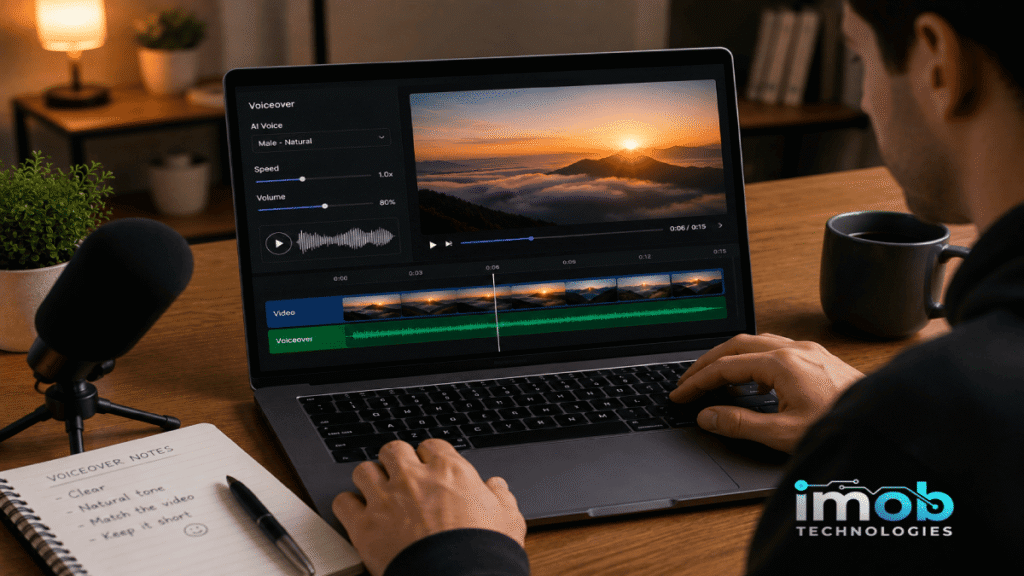
If your video needs narration, you can add a voiceover.
A voiceover is simply someone speaking while the video is playing.
That person can be you, another human, or an AI-generated voice, depending on the tool.
For example, your video might show a student studying while a voice says:
“AI can make studying easier when you use the right tools.”
If you are using an AI voice, listen to the entire recording before publishing.
Check:
- Pronunciation
- Names
- Numbers
- Pauses
- Speed
- Whether the voice sounds natural
Even when the technology is good, small mistakes can still happen.
Step 8: Add Subtitles
Subtitles are the words that appear on the screen while someone is speaking.
You have probably seen them on TikTok, YouTube Shorts, and Instagram Reels.
They are useful because many people watch videos without sound.
If your AI tool generates subtitles automatically, don’t assume they are perfect.
Watch the video and check them carefully.
A single wrong word can completely change the meaning of a sentence.
Step 9: Add Music and Sound Effects
Music can make a video feel more interesting.
However, you don’t need music in every video.
For example, if you are creating an educational video, quiet background music might work better than something loud.
There is also one important rule:
Don’t use copyrighted music just because you found it online.
Instead, check the licensing terms of the music you use, especially if you plan to monetize your content.
Step 10: Review the Entire Video
This step is easy to skip.
Don’t.
Watch the entire video from beginning to end.
Ask yourself:
Does the video make sense?
Can someone understand it without you explaining it separately?
Do the visuals match the words?
If you are talking about a laptop but the video shows a phone, fix it.
Is the narration correct?
Listen carefully for strange pronunciation.
Are the subtitles correct?
Fix spelling and timing mistakes.
Does anything look obviously AI-generated?
If something looks strange, regenerate or edit it.
This final check can turn an average AI video into a much better one.
Step 11: Export the Finished Video
Once you are happy with the result, you can export it.
Exporting simply means saving the finished project as a video file.
Before clicking Export or Download, check:
- Resolution
- Video orientation
- Audio
- Subtitles
- Watermarks
- File format
- Usage rights
If you are creating a TikTok, Reel, or YouTube Short, you will normally want a vertical video.
For a traditional YouTube video, landscape may be more appropriate.
A Simple Example: From Text to Video
Let’s see how everything fits together.
Imagine you start with this:
“I want to make a video about why AI is useful for students.”
That’s your idea.
The Original Idea
Keep it simple at first. You can always make the idea more detailed later.
Turning the Idea Into a Script
“AI can help students in several simple ways. It can summarize notes, explain difficult subjects, and create practice questions.”
Now you have something that can be turned into individual scenes.
Breaking the Script Into Scenes
Scene1: A student looking at a pile of notes.
Scene2: The notes becoming a short summary.
Scene3: A difficult concept being explained on a laptop.
Scene4: Practice questions appearing on screen.
Scene5: The student reviewing the answers.
Now you have something much more useful than a single sentence.
You have a video plan.
That is one of the biggest advantages of text to video AI: you can start with a very simple idea and gradually turn it into something more complete.
7 Tips for Better Text to Video AI Results
1. Start With Short Videos
Don’t make your first project ten minutes long.
Try 20–30 seconds instead. You’ll learn much faster.
2. Write Specific Prompts
“A person walking” is vague.
“A person walking through a rainy city street at night, cinematic lighting, realistic style” gives the AI much more direction.
3. Keep Scenes Simple
One clear action is often easier for AI to generate than five actions happening at the same time.
4. Check the AI’s Results
Always check facts, visuals, narration, and subtitles.
5. Edit the Generated Video
AI generation is not the end of the process.
A little editing can make a big difference.
6. Add Your Own Ideas
Don’t let AI decide everything.
Your story, examples, opinions, and creativity are what make the final video different.
7. Watch the Final Video Before Publishing
Don’t only ask whether the technology worked.
Ask yourself:
“Would I actually watch this?”
That is a much better test.
Common Text to Video AI Problems
The AI Does Not Follow the Prompt
Try making your prompt more specific.
Describe the subject, action, environment, style, and camera perspective.
The Video Looks Strange
Generative AI can sometimes struggle with small details and complicated actions.
Try simplifying the scene.
The Voice Sounds Unnatural
Try another voice if the tool offers multiple options.
You can also rewrite the script so it sounds more natural when spoken.
The Visuals Do Not Match the Script
Break the script into smaller scenes and give each scene its own instructions.
The Video Looks Too Generic
This is a common problem.
If you simply use generic prompts and publish the first result, your content may look generic too.
Add your own:
- Story
- Examples
- Commentary
- Editing
- Visual ideas
- Voice
- Personality
AI should help you create the video, not make every creative decision for you.
Is Text to Video AI Free?
Some AI video tools offer free plans or free trials.
Others require a subscription.
Even when a tool is free, there may be restrictions such as:
- Limited generations
- Watermarks
- Lower resolution
- Short video duration
- Limited AI credits
- Fewer features
- Restrictions on commercial use
These limits can change, so always check the current pricing and terms of the specific tool you are using.
If you are just learning, a free option is usually enough to understand the basic workflow before spending money.
Can You Use AI-Generated Videos on YouTube and TikTok?
AI can be part of your video-creation process. However, you shouldn’t assume that every AI-generated video is automatically safe to publish or monetize.
There are a few things to consider.
Check the AI Tool’s Usage Rights
Some tools have specific rules about commercial use.
Be Careful With Copyrighted Content
Be careful with music, images, video clips, logos, characters, and other material that may belong to someone else.
Add Your Own Value
A video that simply consists of automatically generated scenes with no meaningful original contribution may provide little value to viewers.
Your own research, explanation, storytelling, editing, and ideas can make the content substantially better.
Follow the Platform’s Current Rules
YouTube, TikTok, and other platforms can have their own requirements for AI-generated or altered content.
Because policies can change, check the current rules before publishing.
Text to Video AI vs. Traditional Video Editing
Traditional video creation can look like this:
Idea → Script → Record → Find Footage → Edit → Add Voice → Add Subtitles → Export
That’s a lot of separate steps.
AI can simplify some of them:
Idea → Text/Prompt → AI Generation → Edit → Export
However, that doesn’t mean traditional editing is useless.
In fact, traditional editing gives you much more control.
The advantage of AI is that it can help you get from an idea to a first draft much faster.
For many creators, the best approach is to use AI where it saves time, then use human editing and creativity to improve the final result.
Frequently Asked Questions About Text to Video AI
What Is Text to Video AI?
Text to video AI is technology that uses written instructions to create or help create video content.
Can I Turn a Script Into a Video?
Yes. Many AI video tools can use a script, prompt, or written idea as the starting point for creating video content.
Do I Need Video Editing Experience?
No. Many AI video tools are designed to be beginner-friendly. Basic editing knowledge can still help you improve your results.
Can I Create AI Videos for Free?
Some tools offer free plans or trials, but they may have limitations such as watermarks, credits, or lower export quality.
Can AI Generate a Voiceover?
Some AI video platforms can generate narration or voiceovers. The exact features depend on the tool.
Can AI Add Subtitles?
Some platforms can automatically generate subtitles from the video’s audio.
Can I Use AI Videos on YouTube?
AI can be used as part of YouTube content creation, but you should check the tool’s usage rights and YouTube’s current policies. Your content should also provide genuine value to viewers.
What Is the Best Text to Video AI Tool?
There isn’t one tool that is best for everyone.
The right choice depends on whether you want short AI-generated clips, complete videos from scripts, social-media content, educational videos, or something else.
Final Thoughts
Text to video AI may sound complicated at first.
But once you break it down, the process is actually pretty simple:
Have an idea → Write it down → Turn it into a script → Give it to an AI tool → Generate → Check → Edit → Export.
You don’t need to be an expert.
You don’t need expensive equipment.
And you don’t need to create a 10-minute masterpiece on your first attempt.
Start with a simple 20–30 second video.
See what the AI gets right. See what it gets wrong. Change your instructions and try again.
The goal isn’t to let AI do everything for you.
The goal is to use AI to get from “I have an idea” to “I have a video” much faster, while keeping your own creativity and judgment in control.