


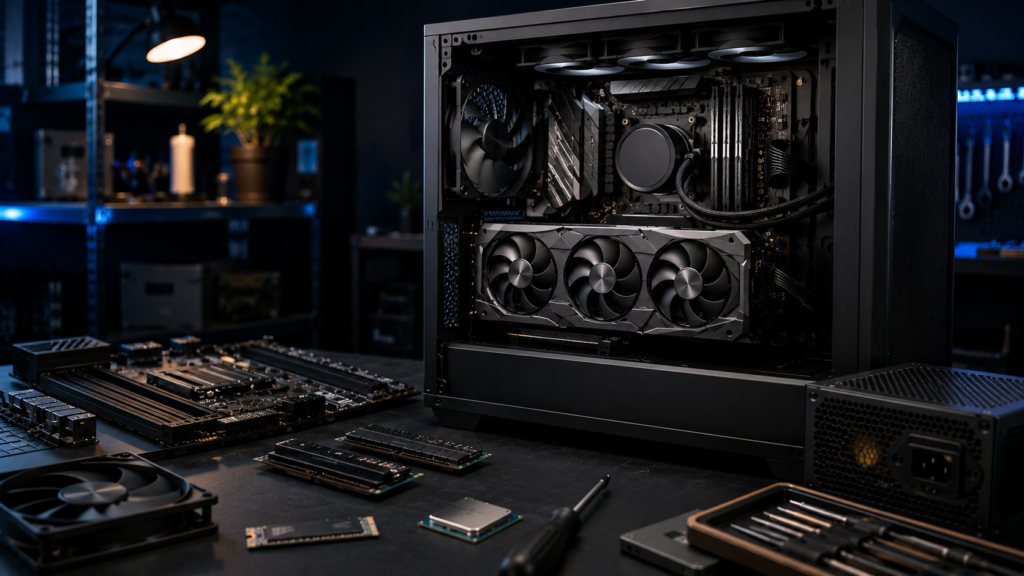
A local AI PC build should not be planned like a gaming PC with extra VRAM. GPU memory matters, and it often decides which models you can run, but it does not decide whether the whole system feels fast, stable, quiet, and easy to use.
That is where many build guides get it wrong. They tell you to buy the GPU with the most VRAM you can afford, then treat every other part like an afterthought. In real use, local AI is more demanding than that. A private chatbot, coding assistant, image generator, and AI workstation all stress the PC differently.
Why VRAM Gets All the Attention
VRAM is the easiest spec to understand. If a model does not fit inside GPU memory, performance can fall sharply because the system may need to offload work to system RAM or the CPU.
That part is true. For a local LLM, VRAM affects model size, quantization choice, and context length. For image generation, it affects resolution, batch size, and complex workflows with tools such as upscalers or LoRAs.
But VRAM is only the front door. The rest of the local AI PC build decides what happens after you walk through it.
A system with a large-VRAM GPU can still feel bad if it has too little system RAM, a cramped SSD, poor airflow, an underpowered PSU, or a software stack that barely supports the hardware.
Start With the Local AI Workload
Before choosing parts, decide what kind of local AI work you actually want to do.
If you want a private writing assistant, note summarizer, or basic chatbot, you do not need a monster workstation. Tools such as Ollama and LM Studio make it realistic to run useful smaller models on a normal desktop with a capable GPU.
If you want coding help with larger context windows, the requirements rise. You may keep an IDE, browser, documentation, terminal, and local model running together. That makes RAM and CPU responsiveness more important.
If you want image generation, the build changes again. Stable Diffusion-style workflows can push VRAM, storage, and cooling harder than a simple chatbot. Generated files also pile up quickly.
The mistake is building for “AI” as if it were one workload. It is not.
GPU: Still the Most Important Part
The GPU remains the most important component in most local AI builds. It usually gives the biggest performance improvement and sets the practical ceiling for many models.
In 2026, NVIDIA is still the easiest path for many users because CUDA support is widely used across AI tools. NVIDIA’s RTX AI PC platform is also built around local AI acceleration, creator workflows, and model inference.
AMD and Intel GPUs can work too, and support continues to improve. The catch is that compatibility depends more on the specific app, driver, and backend. If you want fewer setup problems, check your preferred tools before buying the card.
A simple VRAM guide looks like this:
- 8GB VRAM: good for learning, smaller models, and light experiments
- 12GB VRAM: practical starting point for local chat and smaller local LLMs
- 16GB VRAM: better comfort zone for regular local AI use
- 24GB VRAM: much easier for larger models and heavier creative workflows
But do not buy only by VRAM. Cooling, memory bandwidth, software support, and power use also matter.
System RAM Is Not Optional Headroom
System RAM does not replace VRAM, but it keeps the PC usable while local AI is running.
A 16GB system can work for light experiments, but it is not the ideal baseline for a new local AI PC build. Windows, browser tabs, launchers, monitoring tools, code editors, and AI apps can eat memory quickly.
For most new builds, 32GB RAM is the sensible minimum. It gives the system enough room to stay responsive while the GPU handles inference. If you plan to run larger models with CPU offloading, use creative tools, or multitask heavily, 64GB is a safer target.
RAM speed matters less than capacity for most users. Do not overspend on flashy memory if that money would be better used on a stronger GPU or larger SSD.
Storage: AI Models Fill Drives Fast
Local AI models are large. A few GGUF files, image checkpoints, generated outputs, and test models can eat hundreds of gigabytes faster than expected.
A 500GB SSD can work, but it becomes cramped if the same PC also stores games, video files, and normal apps. For a new local AI build, 1TB NVMe storage should be treated as the floor. A 2TB NVMe SSD is the better choice if you want room to experiment.
Fast storage will not make a small model magically smarter, but it makes the system less annoying when downloading, moving, loading, and organizing model files.
For local LLM users, the project is worth knowing because it helped make efficient GGUF-based local model workflows popular on consumer hardware.
CPU: Important, But Usually Not the Star
A local AI PC does not need the most expensive CPU unless your workload depends on CPU-heavy tasks.
For GPU-based inference, the CPU mainly keeps the system responsive, manages background tasks, feeds data, and handles whatever else you are doing at the same time. A modern 6-core or 8-core processor is enough for many users.
More cores help if you compile code, edit video, run virtual machines, process large datasets, or often offload part of a model to the CPU. But for most local AI builds, it is smarter to avoid overspending on the CPU and put more money toward GPU, RAM, storage, and cooling.
Cooling and Power Decide Stability
AI workloads can run for long periods. That makes cooling more important than many beginners expect.
A gaming benchmark may last a few minutes. A local AI session can keep the GPU active for much longer. Image generation, batch jobs, model testing, and long coding sessions can all expose weak airflow.
Choose a case with practical ventilation, not just glass panels. Make sure the GPU has space to breathe. Use a quality power supply with enough wattage for the GPU and the rest of the system, plus comfortable headroom.
A stable, quiet PC is better than a hotter build that looks faster on paper.
Software Support Is a Build Requirement
Hardware is only half the story. The software path decides how much time you waste.
Ollama is a clean option if you like simple commands. LM Studio is easier if you prefer a desktop interface. Advanced users may move into llama.cpp, ComfyUI, text-generation-webui, or other specialized tools.
Before buying parts, check the software you plan to use. Look for GPU support, Windows compatibility, model format, driver requirements, and community troubleshooting. A slightly slower PC that works smoothly is better than a faster one that turns every update into a repair job.
The IMOB Local AI Build Map
| Build Type | Suggested Direction | Best For |
|---|---|---|
| Beginner private AI | 12GB GPU, 32GB RAM, 1TB NVMe SSD, modern 6-core CPU | Local chat, writing, summaries, light coding |
| Balanced local AI PC | 16GB GPU, 32GB or 64GB RAM, 2TB NVMe SSD, modern 8-core CPU | Regular local LLM use, coding help, image generation |
| Creator AI workstation | 24GB GPU, 64GB RAM, 2TB+ NVMe SSD, strong CPU, quality PSU and airflow case | Larger models, heavier image workflows, long sessions |
The Build Rule Most Guides Skip
A good local AI PC build is not the one with the biggest VRAM number. It is the one where every part supports the workload.
The GPU should fit the models you want to run. The RAM should keep the system responsive. The SSD should have room for models and outputs. The CPU should support your multitasking. The power supply should stay stable. The case should move heat properly. The software should support your hardware without constant troubleshooting.
VRAM opens the door to local AI. The rest of the PC decides whether you enjoy using it.
Read More → Run a Local LLM on a 12GB GPU Without Wasting Hours