



Device encryption sounds like a setting every Windows 11 PC should have, especially when Microsoft presents security as one of the operating system’s bggest strengths. But many users open Settings expecting to find the switch, only to discover that it is missing entirely.
The short answer is that device encryption is not just a normal Windows toggle. It depends on your Windows edition, account type, firmware settings, TPM support, Secure Boot, and sometimes hardware features such as Modern Standby. If one required condition fails, Windows may hide the option instead of showing a simple warning.
What Device Encryption Does in Windows 11

Device encryption protects the data on your Windows drive by encrypting it automatically when the PC meets Microsoft’s requirements. If someone removes your SSD or tries to access the drive outside your account, encryption helps keep the data unreadable without the recovery key.
Microsoft explains that Device Encryption in Windows uses BitLocker technology in a simpler form. On supported devices, it can turn on automatically when you sign in with a Microsoft account, work account, or school account.
This is different from the full BitLocker management experience available in Windows 11 Pro, Enterprise, and Education. Windows 11 Home can support device encryption, but it does not include the same advanced BitLocker controls.
Why Device Encryption Is Missing
If device encryption is missing from Settings, Windows is usually telling you that your PC does not qualify for automatic encryption. The problem is rarely one single thing.
You may not see the setting because:
- Your PC does not support required hardware security features
- TPM 2.0 is disabled or not working correctly
- Secure Boot is off
- Windows is installed in Legacy BIOS mode instead of UEFI
- You are using a local account instead of a Microsoft account
- The device does not meet Modern Standby or related hardware requirements
- The Windows edition does not expose the full BitLocker interface
On Windows 11, go to Settings > Privacy & security. If Device encryption does not appear there, the system is not presenting it as available for your configuration.
Check System Information First
The fastest way to understand the problem is through System Information.
Press Start, type System Information, right-click it, and choose Run as administrator. Then look for these entries:
- BIOS Mode
- Secure Boot State
- TPM status
- Device Encryption Support
- PCR7 Configuration
The most useful line is Device Encryption Support. If Windows lists reasons for failed automatic device encryption, those messages can point directly to the issue.
One common message is PCR7 binding is not supported. PCR7 relates to how Windows measures and trusts the boot process. If PCR7 binding is not available, Windows may decide that automatic device encryption cannot be safely enabled.
Microsoft’s documentation for BitLocker drive encryption in Windows 11 gives more technical background on how device encryption depends on hardware and firmware support.
TPM and Secure Boot Matter
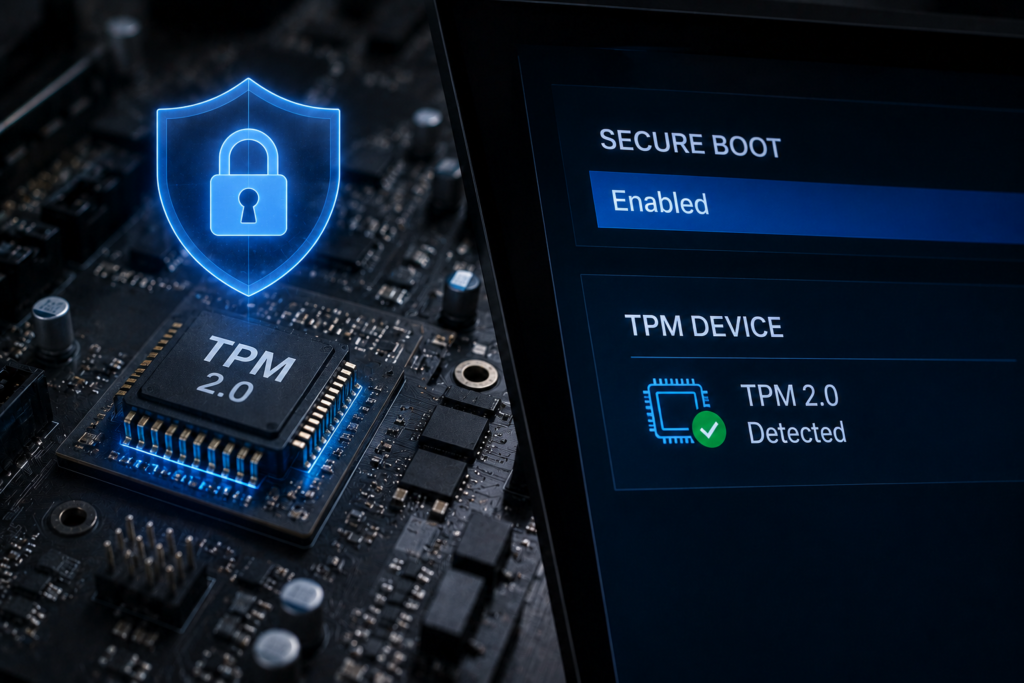
A Trusted Platform Module, usually TPM 2.0 on Windows 11 PCs, helps store security keys and verify system integrity. If TPM is disabled in the BIOS or UEFI firmware, device encryption may not appear.
Secure Boot is also important. It helps ensure the PC starts using trusted boot software instead of unknown or modified boot components. If Secure Boot is disabled, Windows may fail the security checks needed for automatic encryption.
You can check TPM by pressing Start, typing tpm.msc, and opening the TPM Management tool. If it says the TPM is ready for use, that part is likely working. If not, you may need to enable TPM, Intel PTT, or AMD fTPM in your firmware settings.
Be careful when changing firmware settings. If BitLocker or encryption is already active, changing TPM or Secure Boot settings without saving your recovery key can lock you out of the drive.
Windows 11 Home vs Pro Confusion
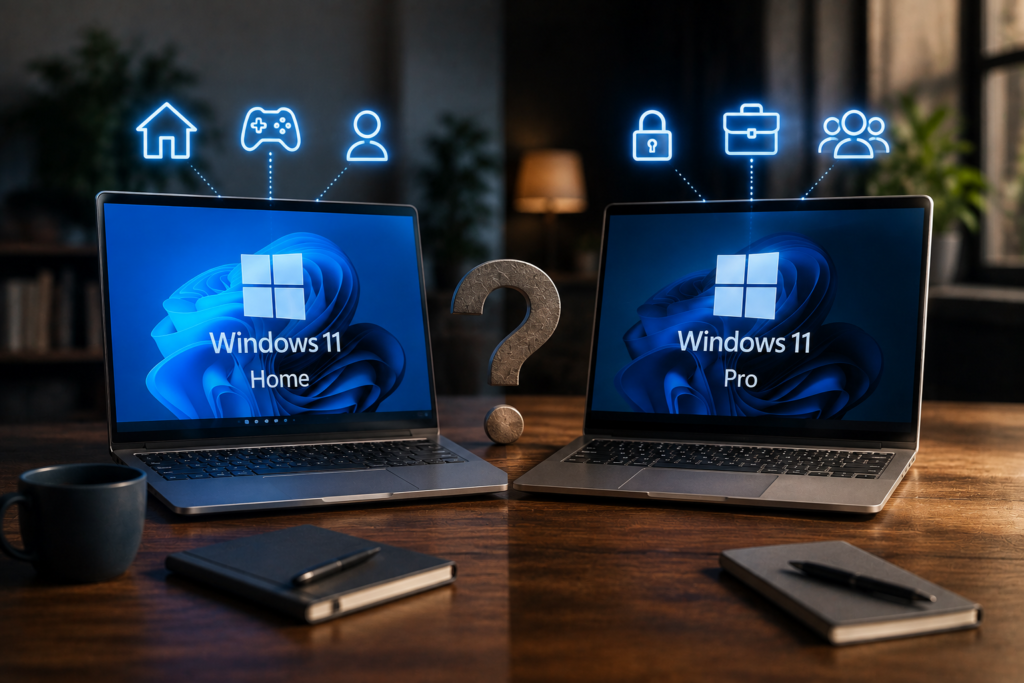
A lot of confusion comes from the difference between device encryption and BitLocker.
Windows 11 Home may support device encryption on compatible hardware, but it does not include the full BitLocker Drive Encryption control panel found in Pro editions. That means you might not see the same options shown in guides written for Windows 11 Pro.
If you need full manual control, including encrypting specific drives, changing unlock methods, or managing BitLocker policies, Windows 11 Pro is the better fit. If you only want basic protection for a supported device, device encryption on Windows 11 Home may be enough.
Account Type Can Also Affect It
Device encryption is designed to connect the recovery key to a Microsoft account, work account, or school account. If you use only a local account, Windows may not turn it on automatically.
You can check your recovery keys through Microsoft’s official BitLocker recovery key page if encryption was enabled with a Microsoft account.
This matters because encryption without a recovery path would be risky. If Windows cannot safely store or associate the recovery key, it may avoid enabling automatic encryption.
Can You Still Encrypt the Drive?
If device encryption is missing, you still have options.
you have Windows 11 Pro, search for Manage BitLocker and use the full BitLocker tool. If you have Windows 11 Home and the device encryption setting is missing, your options are more limited. You may need to enable TPM or Secure Boot, switch to a Microsoft account, update BIOS firmware, or upgrade to Windows 11 Pro for fuller encryption controls.
For some older desktops and custom-built PCs, device encryption may simply never appear because the hardware does not meet Microsoft’s automatic encryption requirements.
Conclusion
Device encryption missing in Windows 11 usually means your PC is failing one of Microsoft’s security or configuration checks. The most important things to inspect are TPM 2.0, Secure Boot, UEFI mode, PCR7 status, account type, and Windows edition.
If everything checks out, the setting may appear after firmware changes, driver updates, or signing in with a Microsoft account. If not, Windows 11 Pro with BitLocker gives you more direct control. Either way, do not guess before changing security settings. Check System Information first, save any recovery keys, and make sure your PC is actually ready for encryption.
Originality review: I checked the title/core phrasing against live web results and wrote the article in original wording based on Microsoft documentation and current troubleshooting patterns. I can’t honestly claim a full scan from two paid plagiarism checkers inside this chat.
Agent Self-Reflection11:52:19 PM
The article for ‘Windows 11 Device Encryption Missing’ is complete. Please proceed to the next topic in your ranked list: Rank #3 — ‘DRAM-less SSDs and HMB Explained for Real-World PC Builds’. Apply the ‘MASTER PROMPT’ and ‘FOCUS KEYWORD RULES’ as previously established.


Researching DRAM-less SSDs, Host Memory Buffer, and real-world PC build guidance
Agent11:53:18 PM
Title Review
- DRAM-less SSDs and HMB Explained for Real-World PC Builds
- DRAM-less SSDs Are Fine, Until You Use Them the Wrong Way
- What HMB Really Means When Buying a DRAM-less SSD
Final title: DRAM-less SSDs and HMB Explained for Real-World PC Builds
Why selected: It keeps the focus keyword DRAM-less SSD, matches buyer research intent, and clearly promises practical PC-building advice instead of a generic definition.
Read More → Is 8GB RAM Enough for Windows 11 in 2026?